
Logic Apps Standard Extension for Azure Developer CLI (azd)
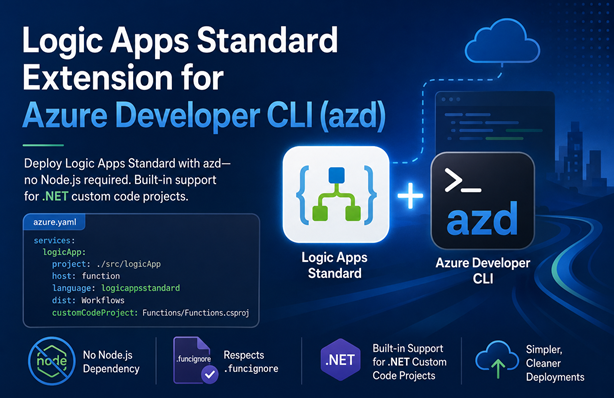
I’ve been working with the Azure Developer CLI (azd) to deploy Logic Apps Standard projects for a while, and one thing I was missing was native support for Logic Apps Standard projects in azd. To package a Logic Apps Standard project, you can use Node.js as a workaround by configuring language: js in your azure.yaml. It works, but it creates an unnecessary dependency on Node.js, even when your project has nothing to do with Node. It also doesn’t handle the scenario where your Logic App includes a .NET custom code project.
To address this, I created the Azure Logic Apps Standard extension. It introduces the logicappsstandard language, which handles packaging Logic Apps Standard projects correctly, including support for custom code projects.
In this post, I’ll explain the problem in more detail, introduce azd extensions and walk through how to install and use the extension. I’ve also created a sample template that you can deploy to see the extension in action.
Table of Contents
- The Problem with Deploying Logic Apps using azd
- Azure Developer CLI Extensions
- Installing the Extension
- Packaging a Logic App Without Custom Code
- Packaging a Logic App with Custom Code
- Requiring the Extension in Your Template
- Conclusion
The Problem with Deploying Logic Apps using azd
When you want to deploy a Logic Apps Standard project using azd, there’s no built-in language option for it. The standard workaround is to configure the service with language: js in your azure.yaml:
services:
  logicAppWithCode:
    project: ./src/logicAppWithCode
    host: function
    language: js
This works because the configured project folder will be zipped, but it has a few downsides. It introduces a dependency on Node.js that isn’t needed if your project doesn’t contain any JavaScript. Every developer and CI/CD agent that uses the template needs Node.js installed. It also means the .funcignore file isn’t respected when packaging. So, files that should be excluded can end up in the deployment package.
Note that Logic Apps Standard is built on top of the Azure Functions runtime, so using
host: functionmakes sense.
The situation gets more complicated when your Logic App includes a custom code project. Custom code projects let you add .NET functions that your workflows can call. Before packaging the Logic App, you need to build the .NET project so the compiled output gets included in the deployment zip. You can do this by adding a prepackage hook that builds the project:
services:
  logicAppWithCode:
    project: ./src/logicAppWithCode
    dist: Workflows
    host: function
    language: js
    hooks:
      prepackage:
        shell: pwsh
        run: ../../hooks/prepackage-logicapp-build-functions-project.ps1
The hook script itself executes something like:
dotnet build ./Functions/Functions.csproj --configuration Release
This works, but it means writing and maintaining extra hook scripts to get a build working. It also introduces an extra dependency on for example PowerShell.
Azure Developer CLI Extensions
Azure Developer CLI extensions are modular components that extend the functionality of azd. They allow you to add new capabilities, automate workflows and integrate with other services directly from the CLI without modifying azd itself.
Extensions are distributed through extension sources, which are file-based or URL-based manifests that list available extensions. Think of them as NuGet feeds or npm registries for azd. By default, azd is configured with the official extension source registry, so you can install extensions without any additional setup.
The extension framework also supports a concept called a Framework Service Provider, which is what I used for the Azure Logic Apps Standard extension. It lets an extension register itself as the handler for a custom language value configured in an azure.yaml.
In the case of the Azure Logic Apps Standard extension, when azd encounters language: logicappsstandard, it hands off the restore, build and package phases to the extension.
Installing the Extension
The extension is available from the official azd extension source, so you can install it directly without adding a source:
azd ext install azure.logicappsstandard
If you already have the extension installed and want to upgrade to the latest version, run:
azd ext upgrade azure.logicappsstandard
The source code for the extension is available at https://github.com/Azure/azure-dev/tree/main/cli/azd/extensions/azure.logicappsstandard.
Packaging a Logic App Without Custom Code
If your Logic App doesn’t include a custom code project, the setup is straightforward. Assume your template has a similar project structure as the following:
└── src
    └── logicAppWithoutCode
        ├── .vscode
        ├── Artifacts
        ├── lib
        ├── Workflow1
        │   └── workflow.json
        ├── Workflow2
        │   └── workflow.json
        ├── workflow-designtime
        ├── .funcignore
        ├── .gitignore
        ├── host.json
        └── local.settings.json
Configure your service in azure.yaml like this:
services:
  logicAppWithoutCode:
    project: ./src/logicAppWithoutCode
    host: function
    language: logicappsstandard
The extension will package everything under ./src/logicAppWithoutCode into a zip file. Because host: function is used, the exclusions in .funcignore are respected and only the relevant files are included in the package. No Node.js required.
Packaging a Logic App with Custom Code
If your Logic App includes a custom code project, the project structure typically looks similar to this:
└── src
    └── logicAppWithCode
        ├── Functions
        │   ├── MyFunctions.cs
        │   ├── Functions.csproj
        │   └── ...
        └── Workflows
            ├── Workflow1
            │   └── workflow.json
            ├── Workflow2
            │   └── workflow.json
            ├── host.json
            └── ...
Here the workflows are in a Workflows subfolder instead of at the root of the project. There’s also a Functions folder containing the custom code project that needs to be built before packaging.
Configure your service in azure.yaml like this:
services:
  logicAppWithCode:
    project: ./src/logicAppWithCode
    dist: Workflows
    host: function
    language: logicappsstandard
    customCodeProject: Functions/Functions.csproj
When azd runs the package phase, the extension first builds the custom code project specified in customCodeProject and then packages the Logic App artifacts in the folder configured by the dist property. No prepackage hook needed.
The customCodeProject property is the path to the .csproj file, relative to the project folder. Make sure the required build toolchain is installed on the machine running the deployment. For .NET 10 projects, that means the .NET 10 SDK. For .NET Framework projects, you need .NET Framework or MSBuild tools.
Requiring the Extension in Your Template
If you share your template with others, it helps to make the extension a declared requirement. You can do this with the requiredVersions section in azure.yaml:
requiredVersions:
  extensions:
    azure.logicappsstandard: "latest"
When someone runs azd without the extension installed, azd will ask to install it.
Conclusion
The Azure Logic Apps Standard extension removes the Node.js dependency from Logic Apps Standard deployments and adds first-class support for custom code projects, without needing prepackage hooks or custom scripts. The sample template gives you a working starting point for both scenarios, including infrastructure and a test workflow. If you’re deploying Logic Apps Standard with azd, give it a try.